November 25, 2026 · Guides
Cloud vs Desktop Nidhi Software: Access, Backups and Risk
Desktop software lives on one computer in the office. Cloud software lives on a server you reach through the internet. Both can run a Nidhi company, but they behave differently for branches, backups and updates.
Here is a plain comparison.
In this guide
Desktop
Where it works.
- Works without internet in one office.
- You manage backups and updates.
- Branch access is hard.
- Data loss if the computer fails and no backup.
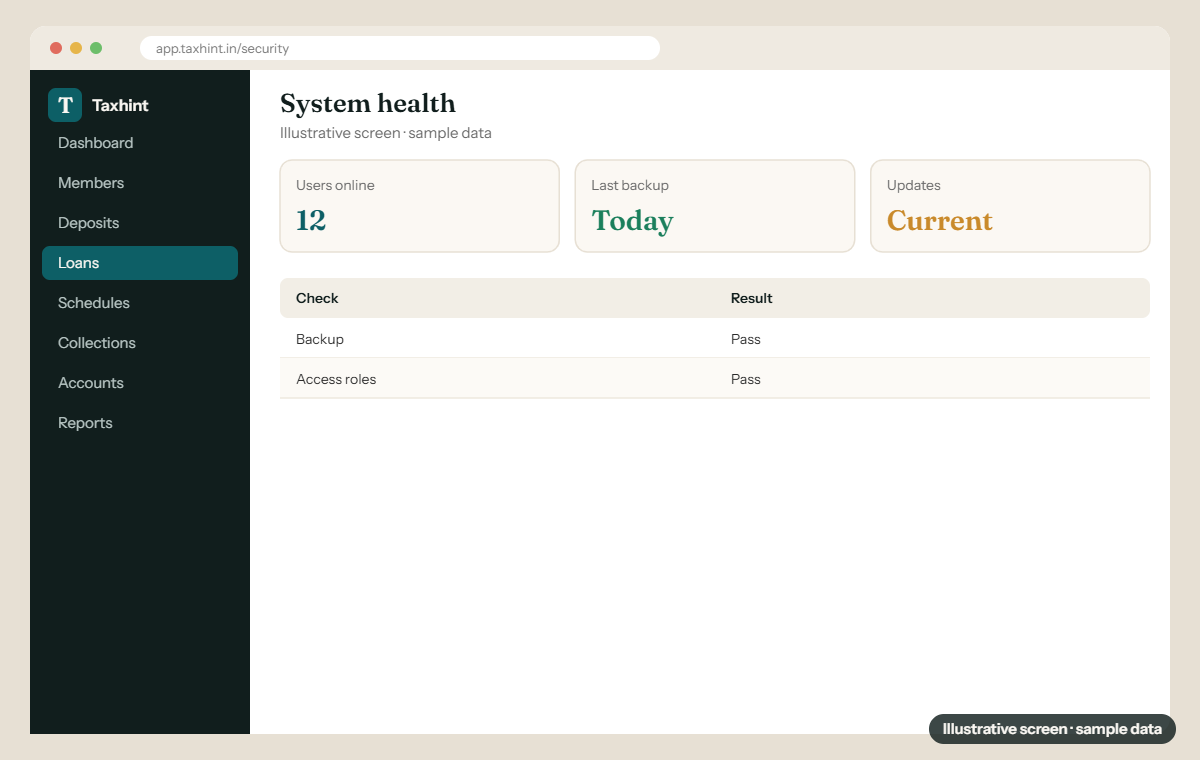
Cloud
Where it works.
- Access from branches and approved devices.
- Provider handles updates and often backups.
- Needs internet and a clear data policy.
- Check hosting and exit terms.
How to choose
Use your needs.
- Count branches and remote users.
- Check internet reliability.
- Ask about backups, hosting and data export.
- See the IT security checklist.
Rules differ by state and entity type, so please verify with your CA or CS before you decide. See Nidhi software.
| Point | Desktop | Cloud |
|---|---|---|
| Branch access | Hard | Easy |
| Backups | Your job | Provider and you |
| Updates | Manual | Provider |
Where your software lives matters
Cloud software runs on the vendor servers and is accessed through a browser or app. Desktop software runs on your own computer or server. Each has strengths. Cloud makes multi branch access and updates easier. Desktop gives you control of the machine but needs your own backups and maintenance.
Illustrative example: a Nidhi with three branches finds that cloud lets every branch work on one data set. A single office with a reliable server may be happy with desktop.
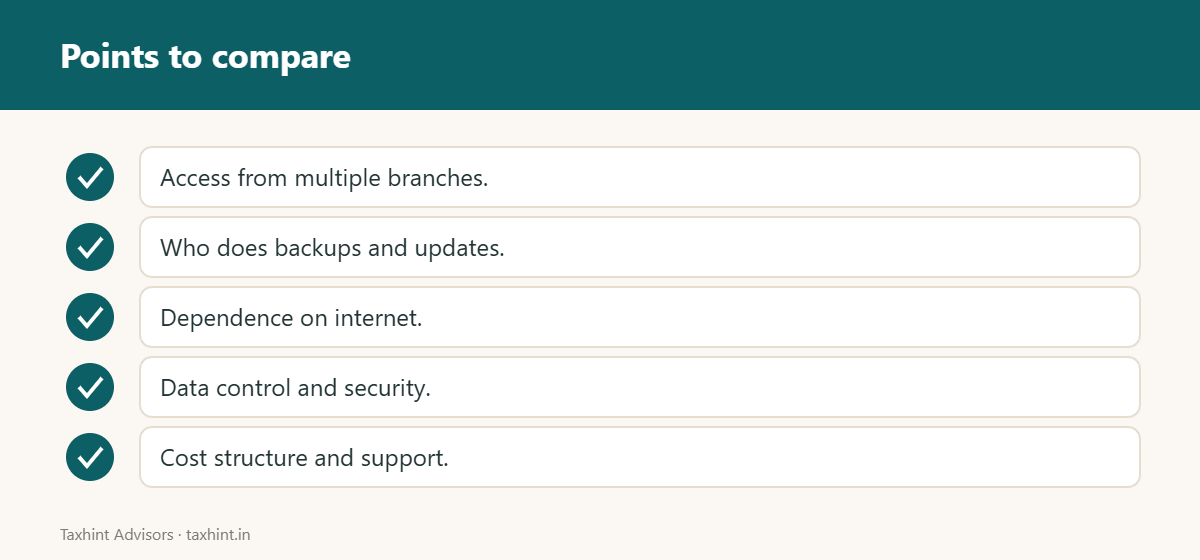
Points to compare
- Access from multiple branches.
- Who does backups and updates.
- Dependence on internet.
- Data control and security.
- Cost structure and support.
Decision steps
- List branches and internet quality at each.
- Ask each vendor about backups and data export.
- Check security practices in writing.
- Test performance with your data size.
- Decide on the setup that your staff can manage.
Points to confirm
- Data protection expectations for your institution.
- Please verify with your CA, CS or lawyer before you rely on it.
Planning for failure
Ask what happens if the internet or the server fails and how fast you can restore data. A recovery test shows the truth. Write the answers down and decide with your team, not alone.
Keep a plan for working offline for a day.
- Recovery test
- Offline plan
- Data export check
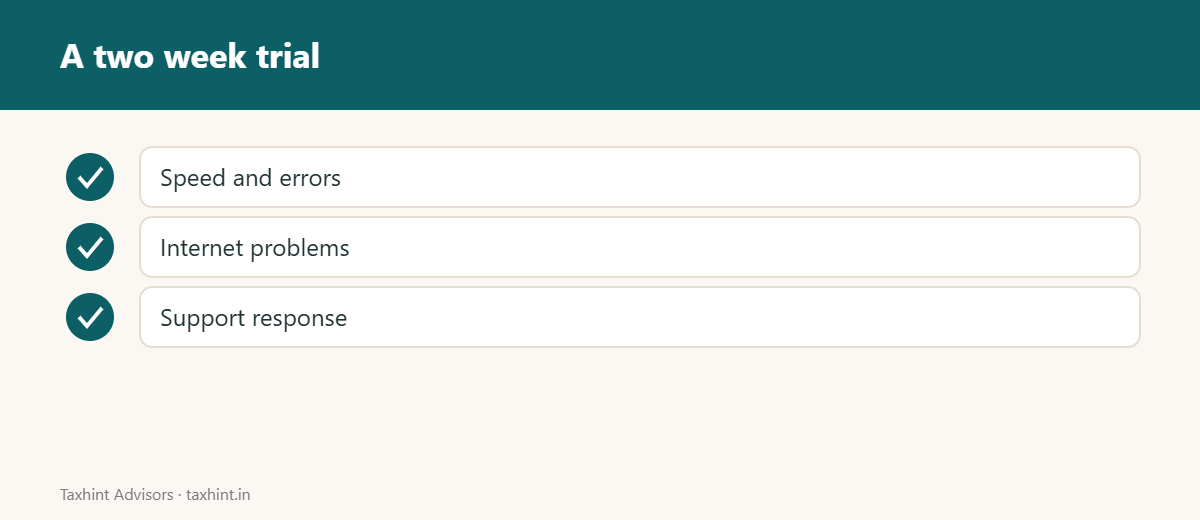
A two week trial
Run a trial with real branch staff for two weeks. Track speed, errors, internet problems and staff comments. The trial tells you more than any brochure, and it is the best time to find out how support actually responds. Write the answer down, give it an owner and review it every quarter.
- Speed and errors
- Internet problems
- Support response
Hidden points
Ask who owns the data, how you can export it and what happens if you stop using the service. Check contract terms on data access and support hours before you sign. Note the answers, name an owner and review them every quarter.
- Data ownership
- Export on exit
- Support hours
Make the decision reversible
Choose terms that let you move away if needed: data export, reasonable notice and clear ownership of data. A reversible decision is easier to make. Note the answers and review them with your CA or lawyer.
Document the decision and the reasons.
- Data export
- Notice period
- Decision record
FAQs
Is cloud safe for financial data?
It can be, with good security and policy. Ask the vendor.
Can I get my data out?
Ask about export before you buy.
What if internet fails?
Plan for it, such as offline modes or a backup connection.
Which suits many branches?
Cloud, usually.
Want to see cloud access across branches? Book a demo of Taxhint Nidhi software. Talk to Taxhint on +91 93117 95484 or [email protected], or visit taxhint.in.