November 25, 2026 · Guides
Loan Limits for Nidhis: Tracking Them in Software

Nidhis lend only to members and within limits set by the Nidhi Rules, such as limits per member and rules on security. Some limits are set by rule, others by your own policy.
The limits have been amended, so please verify the current ones with your CA or CS. Here is how software keeps you inside them.
In this guide
Know the limits
Write them down.
- Limits from the rules and from board policy.
- Which apply to which loan type.
- Date you last verified them.
Rules in this area are specific and change, so please verify the current position with your CA or CS.
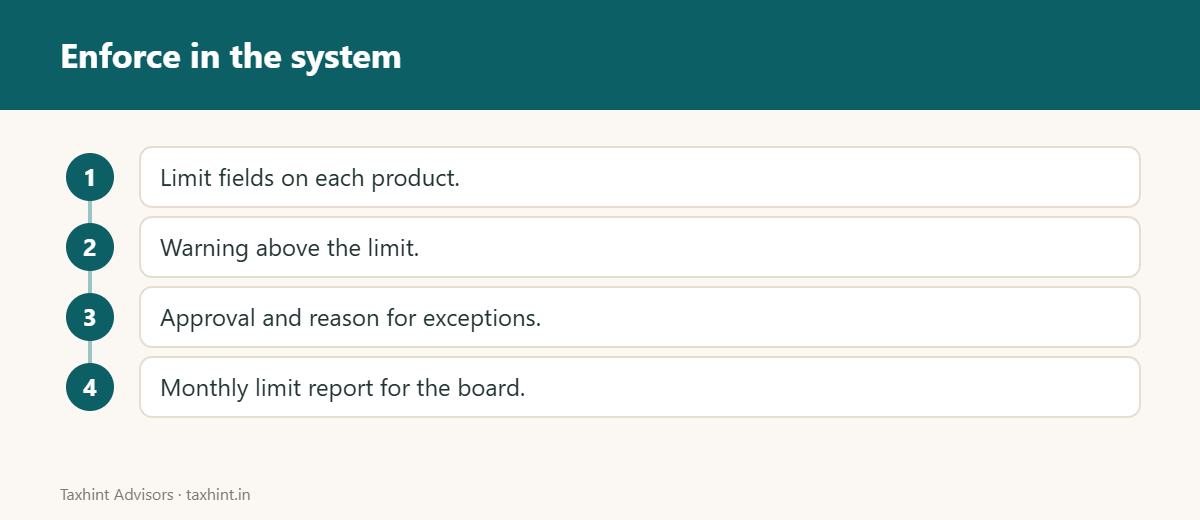
Enforce in the system
Do not rely on memory.
- Limit fields on each product.
- Warning above the limit.
- Approval and reason for exceptions.
- Monthly limit report for the board.
Related checks
Same discipline.
- Only members get loans. See member register.
- See deposit limits tracking.
See Nidhi software.
| Check | Control |
|---|---|
| Member limit | System warning |
| Security | Recorded |
| Exceptions | Board approval |
Making loan limits visible at the counter
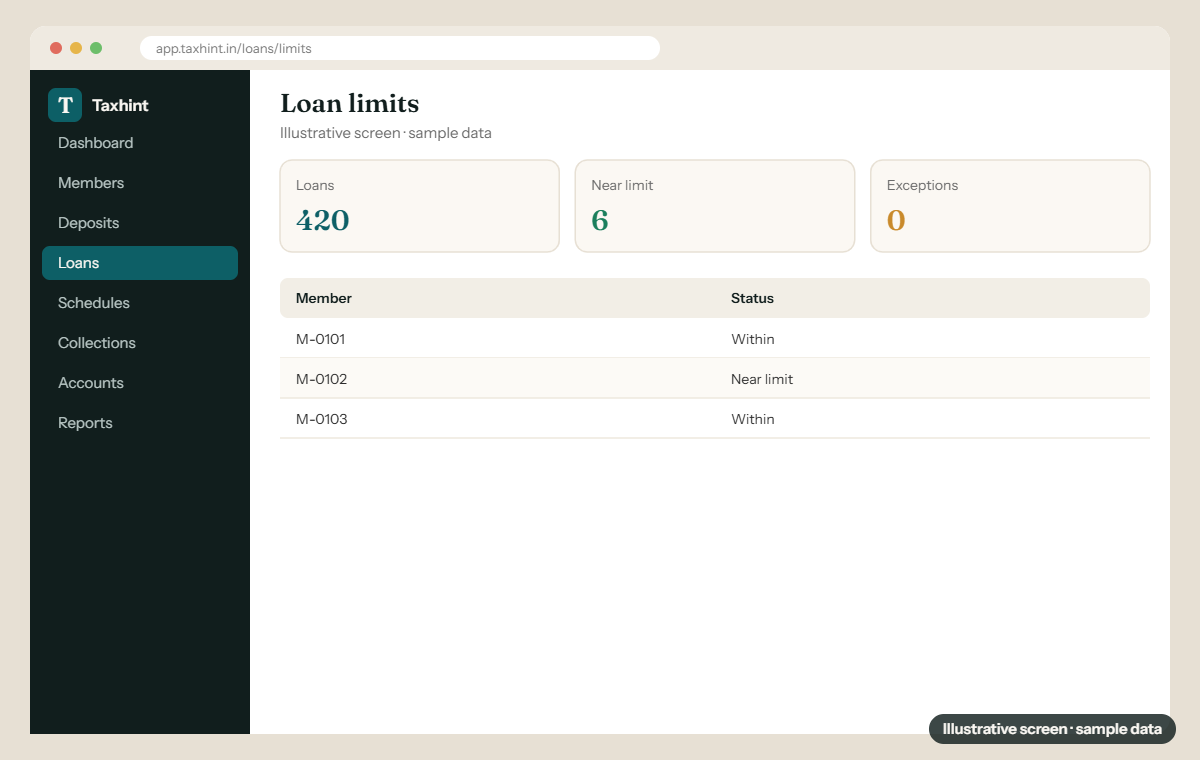
A Nidhi may lend only to its members and within limits set by the rules and by its own policy. The software should show the applicable limit when an officer opens the loan screen and stop or flag a request above it. This reduces mistakes and creates a trail.
Illustrative example: an officer opens a loan for a member. The screen shows the member deposits, existing loans and the maximum allowed under your configured rule. A request above it needs a documented exception, if your policy allows any.
Mistakes to avoid
- Limits stored only in someone head.
- Override without approval or reason.
- Limits not updated after a rule change.
- No report of loans near the limit.
Steps
- Get the current rule text with your CA.
- Translate each limit into a system setting.
- Test with sample members and cases.
- Set override rights and logging.
- Review loans near the limit every month.
Points to confirm
- Current limits and conditions in the Nidhi rules.
- Please verify with your CA, CS or lawyer before you rely on it.
Security and purpose
Record the security taken and the purpose of each loan as your policy requires. Review these in audits. Confirm the current rule text with your CA or CS and note the date you checked it.
Keep the documents in the file.
- Security recorded
- Purpose recorded
- Documents filed
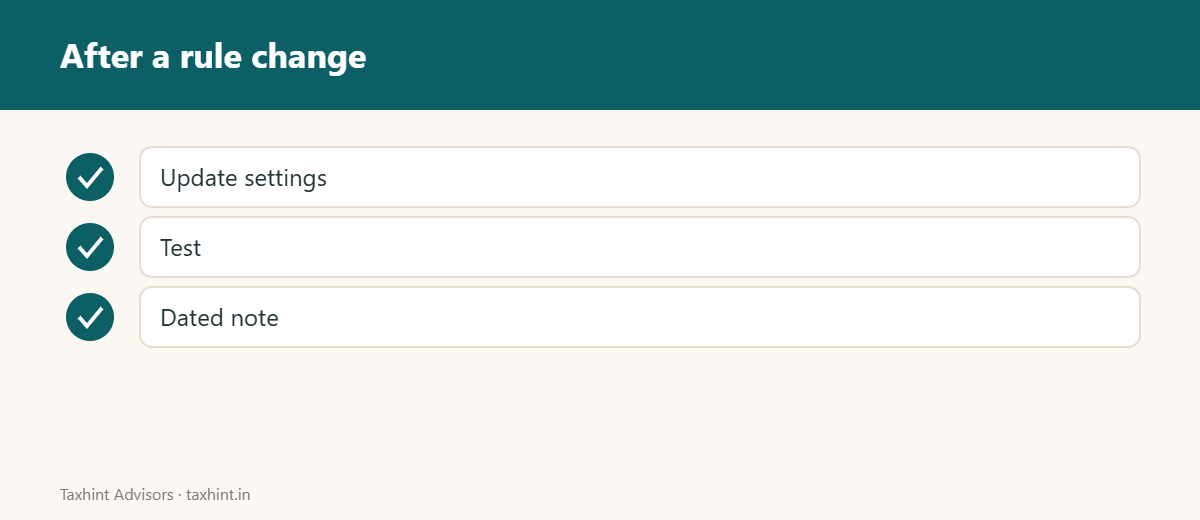
After a rule change
When the rules change, update settings, test and tell staff. Keep a dated note of the change. Confirm the current rule text with your CA or CS and note the date you checked it.
Check old loans for impact.
- Update settings
- Test
- Dated note
Questions people ask
Can an officer override a limit? Only if your policy and the rules allow it and the reason is recorded. Please verify with your CA or CS.
What if the rules change? Update the setting, test and inform staff.
Where do I find the limit? In the current rule text and your approved policy.
Practical tip
Review a sample of loans each month against the limits. Put it in your written procedure so that every new staff member follows it from the first day.
FAQs
Can a Nidhi lend to non-members?
No. Please verify.
Are limits per member?
Some are. Please verify.
Can software block a loan?
It can warn or require approval.
How often do rules change?
They can be amended. Verify every year.
Want loan limits enforced at sanction? Book a demo of Taxhint Nidhi software. Talk to Taxhint on +91 93117 95484 or [email protected], or visit taxhint.in.